The short answer: X's own composer schedules posts. Write the post on x.com, select the Schedule icon (a calendar with a clock) under the text, pick a date and time, select Confirm, then select Schedule where the Post button was. You don't need a scheduling app, and nothing has to be connected to your account.
I build AniyaX, which drafts posts and deliberately doesn't schedule them, because X already does. The screenshots below are from X's composer on x.com in a desktop browser.
Where everything is
| What | Where you find it |
|---|---|
| The Schedule icon | The row of icons under the post, a calendar with a small clock |
| Date, time and time zone | The Schedule window the icon opens |
| Confirm | Top right of the Schedule window |
| Schedule, to send it | Where the Post button was, once a time is set |
| Your scheduled posts | The Scheduled posts link at the bottom of the Schedule window |
From X's composer on x.com, as in the screenshots below.
How to schedule a post on X, step by step
- Write the post in the composer on x.com, as you would to post it now.
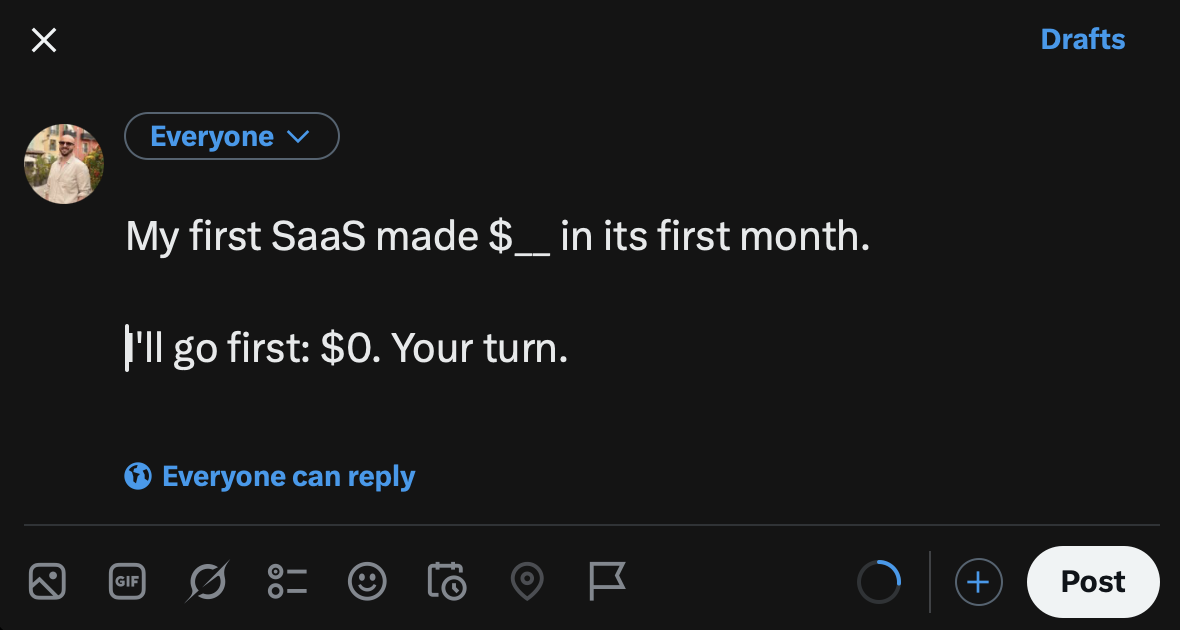
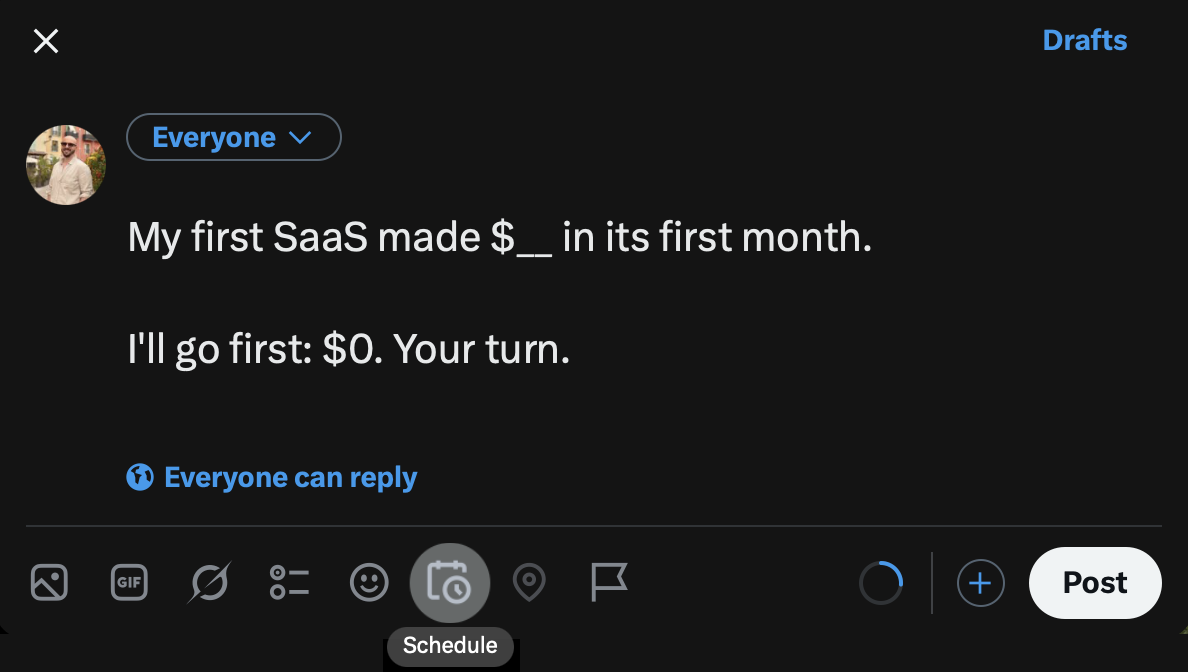
- Select the Schedule icon, the calendar with a clock. Hovering over it shows "Schedule".
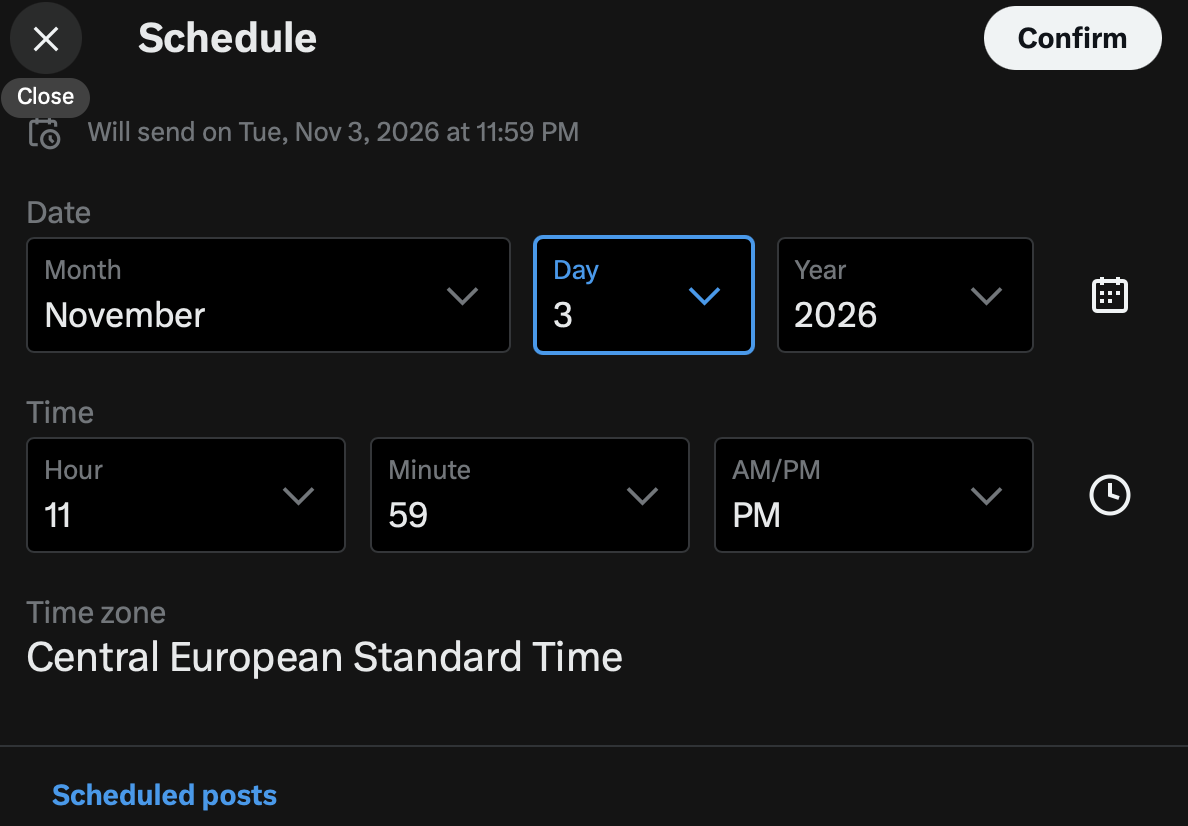
- Pick the date and time. Month, day and year on the first row; hour, minute and AM or PM on the second. The line at the top says when it will go out, for example "Will send on Tue, Nov 3, 2026 at 11:59 PM", and the window names the time zone it uses.
- Select Confirm, top right.
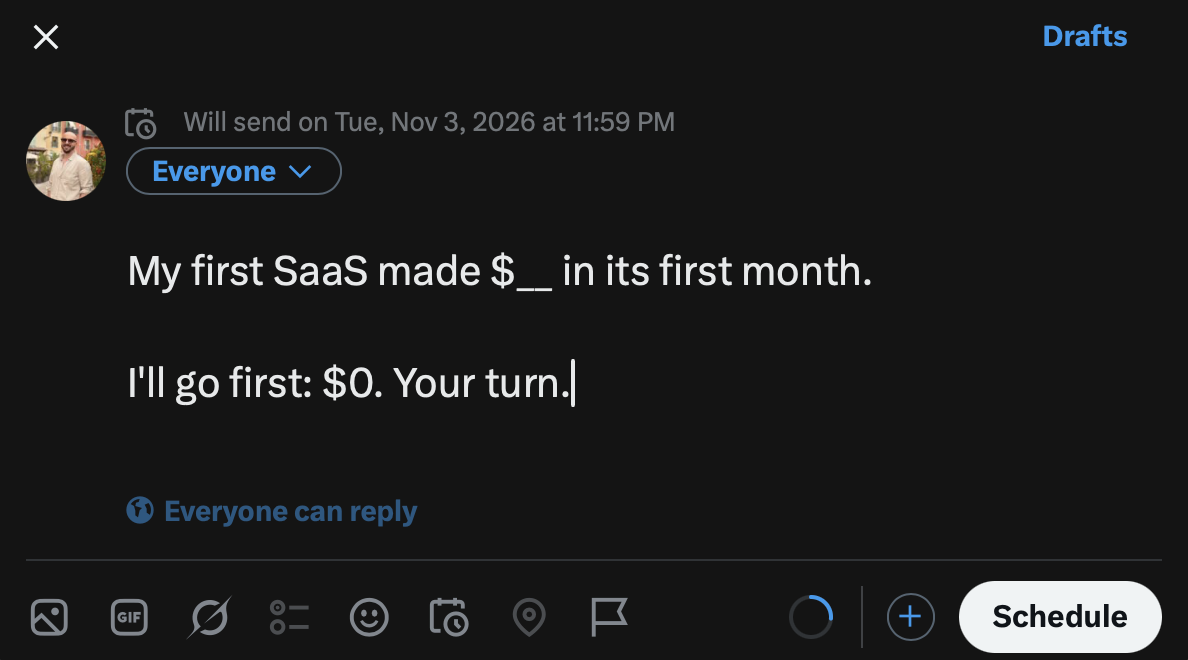
- Select Schedule. Back in the composer, the time shows above the post and the Post button now reads Schedule. Select it and the post waits until that time.
How to find your scheduled posts
Open the composer, select the Schedule icon again, and use the Scheduled posts link at the bottom of the Schedule window. That's where the posts you've scheduled wait until their time.
Getting the time right
- Check the time zone named in the Schedule window. It's the one X will use, which matters if you're travelling or writing for readers somewhere else.
- Read the "Will send on" line before you confirm. It spells out the day of the week, which catches a wrong date faster than the numbers do.
- Pick when your readers are on X, not when you finished writing. A post doesn't get long in front of new readers: X's For You feed drops posts older than 48 hours (how the X algorithm works).
Is scheduling allowed under X's rules?
Yes, for your own posts. X's automation rules don't restrict scheduling them, and the composer above is X's own. What X's rules do restrict is automation that acts on other people: automated likes, bulk follows, automated replies and DMs to people who didn't ask, and posting the same thing again and again. The details, quoted from X, are in X automation rules, tool by tool.
What a scheduling app adds, and what it costs you
Scheduling apps add a queue with time slots, drafts in one place, analytics and, often, automations: retweeting your own post a few hours later, adding a link reply when a post does well, sending DMs. To do any of that, the app needs your X account connected with permission to post for you, and X holds you responsible for what it does with it.
If what you want is better posts rather than a queue, scheduling isn't the bottleneck. AniyaX drafts posts and replies in your voice and never connects to your account; you post or schedule them from X's composer yourself, and its Plan calendar keeps what went out, what you scheduled in X and what's still a draft in one month view.
Questions
Can you schedule a post on X without another app?
Yes. In X's composer on x.com, select the Schedule icon (a calendar with a clock), pick a date and time, select Confirm, then select Schedule where the Post button was.
Where do I find my scheduled posts on X?
Open the composer, select the Schedule icon and use the Scheduled posts link at the bottom of the Schedule window.
What time zone does X use for scheduled posts?
The one named in the Schedule window. Check it, and read the Will send on line, before you confirm.